

Professional Business Card Design Tips for 2026

Table of Contents
Start With Purpose: Who the Card Is For
What to Put on a Business Card (and What to Leave Off)
The Contact Details That Earn Their Space
The Back of the Card: QR Code or Blank?
Business Card Layout Examples That Hold Up in Print
Three Layouts to Copy
Design for Low Vision and Varied Lighting
Test the Layout at Real Size
Business Card Font Size, Typography, and Legibility
Color, Logo, and Images That Survive the Press
Build the Palette in CMYK
Source Logos and Images Correctly
Proof Color Before the Full Run
Business Card Bleed and Safe Area: The File Setup Checklist
Test the Design Before You Order
Frequently Asked Questions
Last Updated: October 18, 2026
Start With Purpose: Who the Card Is For
Most business card design advice jumps straight to fonts and colors. That's backwards.
Cards designed with a clear audience in mind print better and get kept longer. Cards designed to "look nice" end up in a drawer.
Start with a short brief:
Who receives it? Clients, vendors, hiring managers, event attendees?
What should they do next? Call, visit your site, scan a code, book a meeting?
Where will it live? Wallet, desk drawer, bulletin board, phone camera roll?
The answer shapes every choice that follows. A card for a phone camera roll needs a clean QR code.
Purpose should drive format.
Key Takeaway Write one sentence before you design: "This card is for [audience] and should make them [action]." If you can't fill in both blanks, you're not ready to design yet.
What to Put on a Business Card (and What to Leave Off)
The strongest professional business card design tips start with subtraction. The best cards say less, not more.
A business card is a marketing tool, not a brochure. It carries just enough brand identity and contact information to start a relationship. Everything else is clutter.
The Contact Details That Earn Their Space
Every card needs these basics:
Name and job title
Company name and logo
Phone number
Email address
Website
Social media accounts (only the one or two you actually use)
That's the core. Now the optional layer:
QR code linking to your booking page or portfolio
Tagline if it explains what you do in a few words
Physical address if foot traffic matters to you
Leave off the rest. Multiple phone numbers, three email addresses, and a list of every service turn a card into a wall of text. Readers scan cards in seconds, so give them fewer things to scan.
A common mistake is treating the back of the card as free real estate for a company paragraph. Resist it. If someone wants your history, they'll visit your website.
The Back of the Card: QR Code or Blank?
A QR code earns its place when it points somewhere useful: a booking page, a portfolio, a digital contact card. It fails when it points to a generic homepage.
Test your code before you print. Scan it with two different phones.
A blank back is also valid. It gives the card a clean, premium feel and keeps focus on the front.
Business Card Layout Examples That Hold Up in Print
Good business card layout examples share one trait: clear visual hierarchy. The eye knows where to land first, second, and third. Everything else supports that order.
Standard business card size is 3.5 by 2 inches in landscape. Portrait and square formats cost more to print and don't fit every wallet. Start standard unless you have a reason not to.
Three Layouts to Copy
1. The Classic Left-Aligned Stack Logo top left, name and title beneath it, contact details along the bottom.
2. The Centered Minimal Logo centered, name centered below, one line of contact info at the bottom.
3. The Split Panel Brand color block on one third of the card, contact details on the other two thirds.
Whichever you choose, keep the layout uncluttered. Aim for at least a third of the card as white space.
Design for Low Vision and Varied Lighting
A layout that only works for sharp-eyed readers in bright office light fails the people most likely to keep your card. Build accessibility in from the start.
Contrast ratio: Aim for a contrast ratio of at least 4.5:1 between text and background for body text, and 3:1 for large text (roughly 14 point bold or 18 point regular) (Understanding Success Criterion 1.4.3: Contrast (Minimum) | WAI). Free contrast checkers let you test your exact color pairs before you print.
Minimum type sizes: Keep the name at 10-12 point, the job title at 8-9 point, and contact details at 7-8 point. Never drop below 6 point for anything a reader needs. These minimums matter more on textured or matte stock, which absorbs ink and softens edges.
Avoid thin weights and reversed-out small text: Light type and white-on-dark contact lines break down at wallet size. If you use reversed text, keep it above 9 point and reserve it for the name or a short tagline, never for phone numbers or email addresses.
Left-align body text: Centered blocks of contact details are harder to scan. Left-aligned lines with generous leading read faster and survive small print better.
Test in bad light: View your proof under dim light and at an angle. If the phone number disappears, increase contrast or size before you order.
Test the Layout at Real Size
A layout that looks balanced on a 27-inch monitor can collapse at 3.5 by 2 inches. Before you order, print it at full size on plain paper, tape it to a wall, and step back three feet. If you can't read the name and one contact method, your type is too small or too crowded.
Pro Tip Print your layout at full size on plain paper before you order. Tape it to a wall and step back three feet. If you can't read the name and one contact method from there, your type is too small or too crowded.
Business Card Font Size, Typography, and Legibility
Business card font size is where most designs quietly fail.
Set your minimums:
Name: 10-12 point
Job title: 8-9 point
Contact details: 7-8 point minimum
Never go below 6 point for anything a reader needs
Pick fonts for readability, not personality. One clean sans-serif for body text and one accent font for the name or logo is plenty.
Watch your weight, too. Thin, light type looks elegant on screen but disappears on paper, especially textured stock. Medium and semibold weights hold up better in print.
Line spacing matters as much as size. Cramped lines blur together. Give each line a little air.
Watch Out Reversed-out text (white type on a dark background) looks striking but breaks down at small sizes. Keep reversed text above 9 point, and never use it for phone numbers or email addresses.
Color, Logo, and Images That Survive the Press
Screen colors and print colors are not the same thing. A bright blue on your monitor can print dull or shift toward purple. This gap is the most common reason a card comes back looking wrong.
Build the Palette in CMYK
Build your palette in CMYK, not RGB. Get your brand color's CMYK values from whoever set your identity, or convert carefully and proof it.
Watch for out-of-gamut colors. Vivid greens, electric blues, and neon oranges often fall outside what CMYK inks can reproduce, and the printed result shifts toward a duller neighbor.
Rich black is another trap. A large solid black area built from 100% black alone can look flat.
Source Logos and Images Correctly
Your logo needs room to breathe. Give it clear space on all sides, and never stretch or squash it to fit. Distortion is the fastest way to look unprofessional.
For high-resolution images and photography, use files at 300 DPI or higher at actual print size.
If you only have a low-resolution logo, don't upscale it in a design tool and hope for the best. Upscaling adds pixels but not detail.
Proof Color Before the Full Run
Color proofing catches surprises before they multiply across hundreds of cards. Request a proof or small test run and check it under the lighting where your audience will see the card. Compare it against your brand swatches, not your monitor.
Color contrast is your friend. Dark text on a light background reads best. If you want a colored background, choose one light enough that dark text still pops, and verify the contrast ratio before you commit.
Business Card Bleed and Safe Area: The File Setup Checklist
Business card bleed and safe area are the two settings that separate a clean print from a card with chopped-off text. Get them right before you order.
Here's the short version:
Bleed: extra artwork beyond the trim edge, usually 0.125 inches on every side. It prevents white slivers if the cut drifts slightly.
Safe margin: keep all text and logos at least 0.125 inches inside the trim line, so nothing important gets cut.

Run this checklist before you send your file:
Document size set to 3.75 by 2.25 inches (trim size plus bleed)
Background artwork extends to the bleed edge
All text and logos inside the safe margin
Images at 300 DPI or higher
Colors set to CMYK
Fonts embedded or outlined
File exported as a print-ready PDF
Miss one of these and you may get a card back with a white border or a clipped phone number. The Adobe guide to print bleed and safe zones walks through the setup if you want the full detail.
If file setup isn't your strength, ask for design help. A semi-custom design service can take your logo and details and hand back a print-ready file, which beats a reprint any day.
Test the Design Before You Order
Proofing is the step everyone skips and later regrets. A design that looks fine on screen can fail in print for reasons you won't see until the cards arrive.
Do these three tests first:
The squint test. Shrink your design to 25% on screen. If the name and one contact method still stand out, your hierarchy works.
The black-and-white test. Convert the file to grayscale. If it still reads clearly, your color contrast is solid.
The phone test. Scan any QR code with two phones and confirm both land on the right page.
Then check the practical side. Confirm the trim size, the bleed, and the safe margin one more time. Read every line of contact information out loud.
The U.S. Small Business Administration's guidance on marketing materials reminds small businesses that every printed piece represents the brand, so a final proof is worth the few minutes it takes.
When you're ready, order online with a printer that shows you a proof and responds fast if something's off.
Frequently Asked Questions
What is the best font size for a business card?
Keep body text at 8 to 10 points and your name at 12 to 16 points. Anything below 7 points becomes hard to read once the card is in someone's hand, especially for older recipients or in low light. Job titles and secondary details can sit at 7 to 8 points if the font has a tall x-height. Test by printing a draft at actual size and reading it at arm's length, not by zooming in on screen.
What should you include on a professional business card?
Name, job title, company name, phone number, email address, and website cover the essentials. Add a logo, and include social media handles or a QR code only if they lead somewhere you actively maintain. Leave off taglines longer than about six words, full street addresses unless walk-in traffic matters, and multiple phone numbers. A card with six clear pieces of information gets read; one with twelve gets skimmed and set aside.
What is business card bleed and why does it matter?
Bleed is the extra image area beyond the trim line, usually 1/8 inch on each side, so color runs fully to the edge after cutting. Safe area is the opposite: keep text and logos at least 1/8 inch inside the trim so nothing gets clipped. Files built without bleed often come back with thin white slivers along one edge. Set up your document at 3.625 x 2.125 inches with bleed included, and keep critical content inside the safe zone.
How many business cards should I order for a first print run?
Order enough to cover your anticipated needs. Ordering larger quantities can lower the per-card cost, but only if your contact details are stable. If you are rebranding soon or testing a new layout, start smaller and reorder once the design proves itself at events and in meetings.
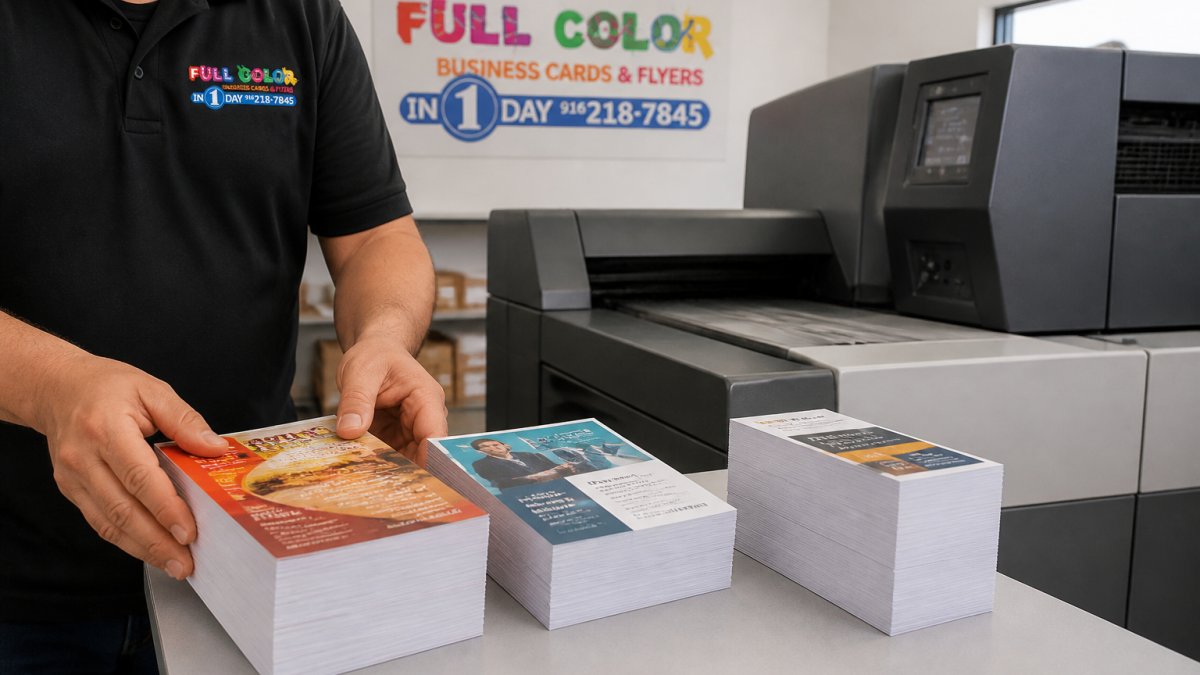
A great card still needs a printer who can deliver it sharp and on time. If you're prepping for an event or a launch and need cards fast, Full Color Business Cards and Flyers in 1 Day offers same-day and next-day printing, semi-custom design support, and local pickup or delivery. Submit your order online and get cards that make the impression your brand deserves.
See Pricing Today


Comments