

How to Ensure Sharp Print Quality: A 2026 Guide

Table of Contents
Step 1: Check Pixel Dimensions and Image Resolution Before You Print
Step 2: Match the Best Image Resolution for Printing to Your Print Size
Viewing Distance and Realistic Sharpness Expectations
Step 3: Resize Images Without Stretching or Upscaling Artifacts
Step 4: Complete the Print-Ready File Checklist Before Exporting
File Formats, Export Settings, and Compression
Step 5: Configure Printer Settings for High-Quality Prints
Step 6: How to Fix Blurry Prints with a Troubleshooting Decision Tree
Step 7: Master Color Management and Soft Proofing for Sharp Results
Conclusion: Your End-to-End Workflow for Sharp Print Quality
Frequently Asked Questions
Last Updated: October 12, 2026
Step 1: Check Pixel Dimensions and Image Resolution Before You Print
Learning how to ensure sharp print quality starts before you ever open your printer settings. It starts with pixel dimensions.

A common problem is when a logo pulled from a website looks fine on screen, but then prints at business card size with fuzzy edges. The screen can hide flaws that print exposes.
Image resolution is simply the number of pixels in an image, usually written as width x height (for example, 3000 x 2000 pixels). That number tells you how much detail you actually have to work with.
To check pixel dimensions on a Windows PC:
Right-click the file and choose Properties
Open the Details tab
Look for the "Dimensions" line
On a Mac:
Open the image in Preview
Press Command + I to open the inspector
Read the pixel width and height
Write those two numbers down. You will need them in the next step.
Watch Out The biggest mistake we see is pulling images straight from a website or social media post. Those files are already compressed and shrunk. They look fine on a phone screen but fall apart in print. Always work from the original file.
Step 2: Match the Best Image Resolution for Printing to Your Print Size
The best image resolution for printing depends on one thing: how large the image will appear on paper. Print resolution is measured in DPI (dots per inch) or PPI (pixels per inch). The two terms get used interchangeably, and for practical purposes they mean the same thing to you.
The long-standing target is 300 DPI at final print size. That is the resolution standard most commercial printers build their workflow around. But 300 DPI is not a magic number that applies everywhere.
Here is the math that actually matters:
Pixels ÷ target DPI = maximum print size in inches
So a 3000-pixel-wide image at 300 DPI prints at 10 inches wide. The same image at 150 DPI prints at 20 inches wide, with half the detail per inch.
Use this table to plan your print size before you commit:
Print Item | Typical Size | Minimum Pixels (300 DPI) | Acceptable DPI Range |
Business card | 3.5 x 2 in | 1050 x 600 | 300-400 |
Flyer | 8.5 x 11 in | 2550 x 3300 | 300 |
Poster | 18 x 24 in | 5400 x 7200 | 150-300 |
Yard sign | 24 x 18 in | 3600 x 5400 | 100-150 |
Banner | 72 x 24 in | 5400 x 1800 | 100-150 |
Notice how the larger items drop below 300 DPI. That is intentional, and it leads to the next point.
Viewing Distance and Realistic Sharpness Expectations
Large prints do not need 300 DPI because nobody stands six inches from a banner. Viewing distance changes what your eye can resolve. A yard sign read from ten feet away looks sharp at 100 to 150 DPI. A business card held in your hand needs the full 300 DPI.
A common mistake is demanding 300 DPI for a banner that would then require a file so large it slows every computer in the chain. Match the resolution to the viewing distance, not to a rule of thumb.
Pro Tip For anything viewed from more than three feet away, 150 DPI is usually plenty. Save your high-resolution files for items people hold in their hands.
Step 3: Resize Images Without Stretching or Upscaling Artifacts
Resizing is where most print quality problems are born. Two things go wrong: stretching and upscaling.
Stretching happens when you change the width and height by different amounts. A circle becomes an oval. Faces look wide or pinched. The fix is to lock the aspect ratio, which is the relationship between width and height.
Upscaling is harder to fix. Upscaling means making an image bigger than its original pixel count. The software has to invent pixels that were never captured.
The rule is simple: resize down, never up. If you need a bigger print, go back and get a bigger original file.
How to resize correctly:
Open the image in your editor
Set the resolution to your target DPI first
Lock the aspect ratio
Enter only the width or only the height, never both
Check the preview before you save
If your image is too small for the print size you want, you have three honest options: use a smaller print size, find a higher-resolution original, or accept a softer result.
Step 4: Complete the Print-Ready File Checklist Before Exporting
A print-ready file is one that needs no further edits before it goes to the press. Missing this step is how good images turn into bad prints. Run through this checklist every time:
Image is at 300 DPI at final print size (or the correct DPI for the viewing distance)
Aspect ratio is correct, with no stretching
No upscaling was used to reach the final size
Color mode is set to CMYK for print, not RGB
Bleed is set to 0.125 inches on all sides
Important text and logos sit at least 0.25 inches from the trim edge
Fonts are embedded or converted to outlines
File is exported at maximum quality
That bleed and margin buffer matters more than people expect. Printers trim in stacks, and a slight shift can slice the edge off your logo if it sits too close.
File Formats, Export Settings, and Compression
PDF is the safest format for print. It holds your layout, fonts, and images in one file. Export as PDF/X-1a or PDF/X-4 if your software offers it, since those presets are built for commercial printing.
JPEG works for photos but uses lossy compression. Every time you save, it throws away a little data. Save once at maximum quality and never re-save the same file.
TIFF and PNG are lossless, so they keep every pixel. TIFF files are large but reliable. Use PNG for graphics with sharp edges or transparency.
Avoid compressing a file to make it easier to email. A compressed file is a lower-quality file. Use a file transfer service instead.
Step 5: Configure Printer Settings for High-Quality Prints
The right printer settings for high-quality prints depend on your printer, but the key options are the same across most models.
Print quality mode: Choose "High" or "Best." Draft mode saves ink and sacrifices detail.
Paper type: Match the setting to your actual paper. A glossy paper setting lays down ink differently than a matte paper setting.
Color management: Let the printer handle color, or let your software handle it. Do not let both try at once.
Scale: Set to 100% or "Actual size." "Fit to page" silently resizes your image and can undo your careful work.
Paper type changes how sharp a print looks. Glossy paper holds fine detail and deep blacks. Matte paper softens contrast but resists fingerprints and glare. For business cards and flyers, glossy or a satin finish usually shows detail best. For a canvas print, the texture itself softens fine lines, so expect a slightly different look.
If your prints come out with lines, gaps, or faded patches, the print head may be clogged. Run a head cleaning cycle first. If that does not fix it, run a deep cleaning cycle. Most printers have both options in the maintenance menu.
Watch Out Never run a deep cleaning cycle more than once or twice in a row. It uses a lot of ink and can flood the print head. If two cycles do not fix the problem, let the printer rest and try again later.
Step 6: How to Fix Blurry Prints with a Troubleshooting Decision Tree
Learning how to fix blurry prints is faster with a decision tree than with guesswork. Work through these questions in order:
1. Is the blur across the whole image, or just part of it?
Whole image: the file resolution is too low. Go back to Step 2.
One area only: the original photo was out of focus there. Nothing will fix it.
2. Is the image stretched or squished?
Yes: the aspect ratio was broken. Re-export from the original. See Step 3.
No: move to the next question.
3. Are there visible dots, lines, or a grid pattern?
Yes: this points to a print head issue. Run a head cleaning cycle.
No: move on.
4. Does the blur appear only in photos, not in text?
Yes: the images were upscaled or compressed. Check your export settings.
No: move on.
5. Did the print look sharp on screen but soft on paper?
Yes: your screen is hiding flaws. Zoom to 100% before you judge a file.
6. Is the paper damp or textured?
Yes: some papers absorb ink and spread it. Try a smoother stock.
Work top to bottom. Most blurry prints trace back to the file, not the printer.
Step 7: Master Color Management and Soft Proofing for Sharp Results
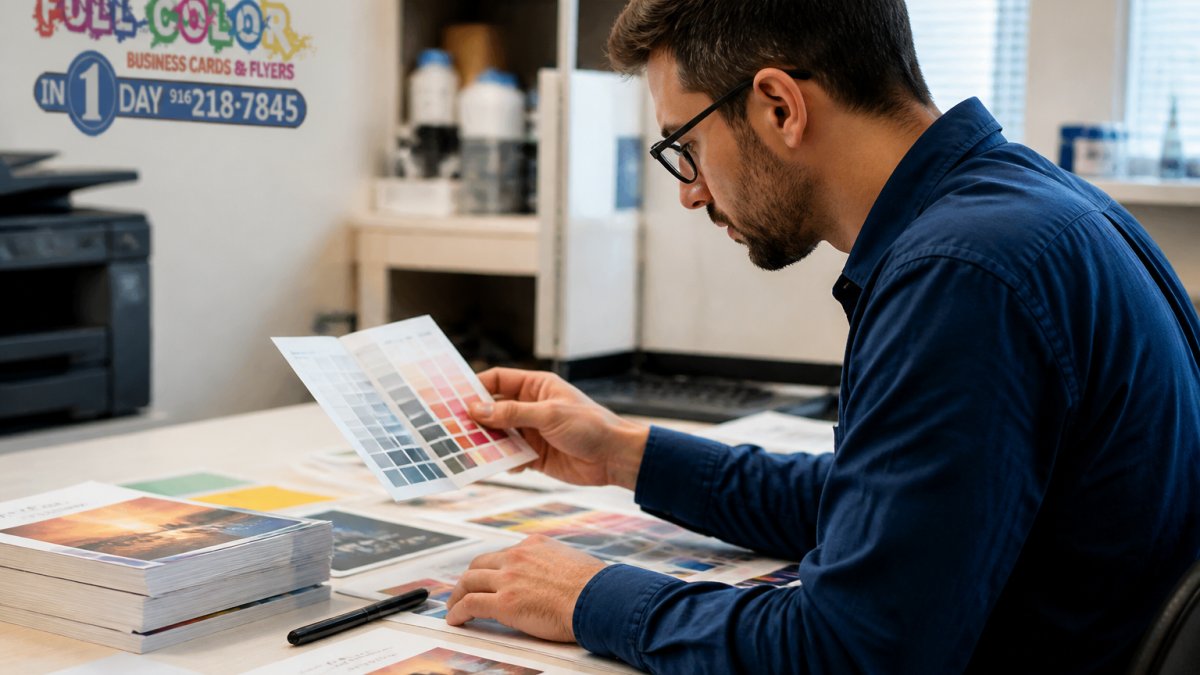
Color and sharpness are linked more than people realize. Color management keeps your colors consistent from screen to paper. Soft proofing lets you preview on screen how the printed piece will actually look.
Here is the problem: your monitor glows. Paper reflects. A bright blue on screen can print as a duller blue. If your file is in RGB and the printer expects CMYK, the conversion can shift colors and soften edges at the same time.
To soft proof in most editing software:
Turn on the proof preview
Select the color profile your printer recommends
Compare the proof view against the normal view
Adjust brightness and saturation before you export
Sharpening is the last step, and it is easy to overdo. A light sharpening pass after resizing restores some crispness. Too much creates halos around edges and visible noise and grain. If you can see the sharpening, you used too much.
Key Takeaway Sharpening cannot create detail that was never in the file. It only makes existing edges more visible. Fix the source first, sharpen last.
Conclusion: Your End-to-End Workflow for Sharp Print Quality
Sharp prints come from a chain, and the chain is only as strong as its weakest link. Check pixel dimensions. Match resolution to print size and viewing distance. Resize without stretching. Run the print-ready checklist. Set your printer correctly. Troubleshoot in order. Proof your color before you commit.
That is the full workflow, and it holds whether you are printing a single flyer or a thousand business cards.
When you would rather not manage every step yourself, that is where we come in. We offer same-day and next-day printing, semi-custom design support, and local pickup and delivery.
Submit your order online and let us handle the details.
Frequently Asked Questions
How can I make my prints look sharper?
Start with a high-resolution image at 300 PPI at the final print size. Avoid upscaling or stretching the file. Use the correct paper type for your subject, apply print-specific sharpening at 100% zoom, and select a high-quality print mode. If you send files to a professional printer, include a print-ready file checklist to catch issues early. For urgent orders, same-day printing services can produce sharp results when your file is prepared correctly.
Why do my printed images look blurry or pixelated?
Blurry or pixelated prints usually come from insufficient image resolution, upscaling a small file, or a soft camera focus. Check the pixel dimensions against your intended print size. A 4x6 inch print needs about 1200x1800 pixels at 300 PPI. If your file falls short, reshooting or resizing without stretching is better than enlarging. For photos from a smartphone, confirm the camera resolution setting is at its highest before capture.
What resolution should an image be for high-quality printing?
For most photo printing and marketing materials, aim for 300 PPI at the final print size. Large prints viewed from a distance, such as posters or banners, can look sharp at 150 PPI or even 100 PPI because the viewing distance is greater. Always check pixel dimensions, not just the DPI number in the file metadata. A 300 DPI file that is only 2x2 inches will not print sharply at 8x10 inches.
Can printer settings affect print sharpness?
Yes. Selecting a high-quality print mode, matching the paper type in the driver, and using the correct resolution setting all improve sharpness. On inkjet printers, a clogged print head causes banding and softness, so run a head cleaning cycle if output looks off. For laser printers, choose the highest resolution available. If you use a professional print service, ask which printer settings for high-quality prints they recommend for your file type.
See Pricing Today

Comments